
VoD library
Every Twitch broadcast you have ingested, grouped by streamer
The VoD library at /vods is the home screen of the app once you sign in. Every Twitch broadcast you have ever requested into vod.ing lives here, grouped by streamer.
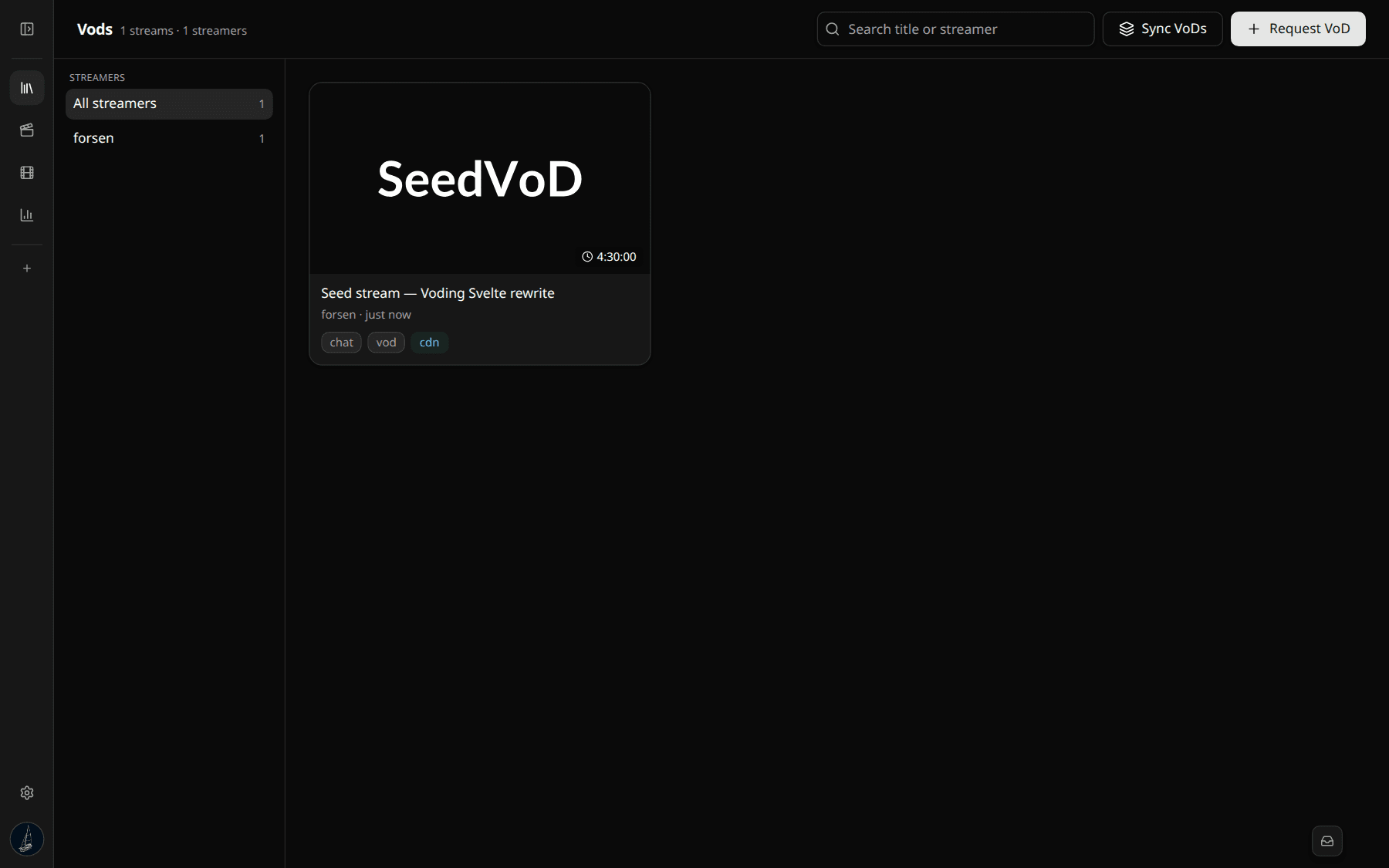
What each card shows
- Thumbnail from Twitch (or our own preview if Twitch has expired the source).
- Title as it was on Twitch when you requested it.
- Streamer name, the date you requested it, and the runtime in
H:MM:SS. - State tags:
vod(video downloaded),chat(chat downloaded), andcdn(the video sits on our CDN and is ready to stream into the editor).
Click any card to open it in the editor.
Sidebar grouping
The left sidebar lists every streamer you have ever ingested, with a count next to each. Click a streamer to filter the grid to just their broadcasts; click All streamers to clear the filter.
Bulk actions and search
The top bar gives you:
- Search by VoD title or streamer.
- Sync VoDs — open the multistream picker pre-filled with a couple of currently-selected VoDs. See Multistream editing.
- Request VoD — opens the Request VoD flow.
Deleting a VoD
Click the three-dot menu on a card to remove a VoD. Deletion is asynchronous:
- The DB row is marked
deleted. The card vanishes from your library immediately. - A worker garbage-collects the S3 objects (HLS segments + chat shards + thumbnails) on the next pass.
- Storage quota is reclaimed once the GC pass completes.
Clips you have already rendered survive deletion of their source VoD. The render is its own MP4 in S3.
Empty state
A first-time signed-in account sees an empty library with one CTA: Request your first VoD. Click it to go straight to Request a VoD. The sidebar populates as soon as the first stream finishes ingesting.