
Workspace
Rearrange, dock, and pop-out the editor panels — including across monitors
The editor is built out of panels — the video player, the chat activity graph, the clip list, live chat, search, and the Twitch clips browser. Every panel is independent: you can drag it anywhere in the workspace, dock it as a tab next to another panel, hide it, or pop it out into its own browser window on a second monitor.
The layout you build is saved to your browser and restored the next time you open a VoD.
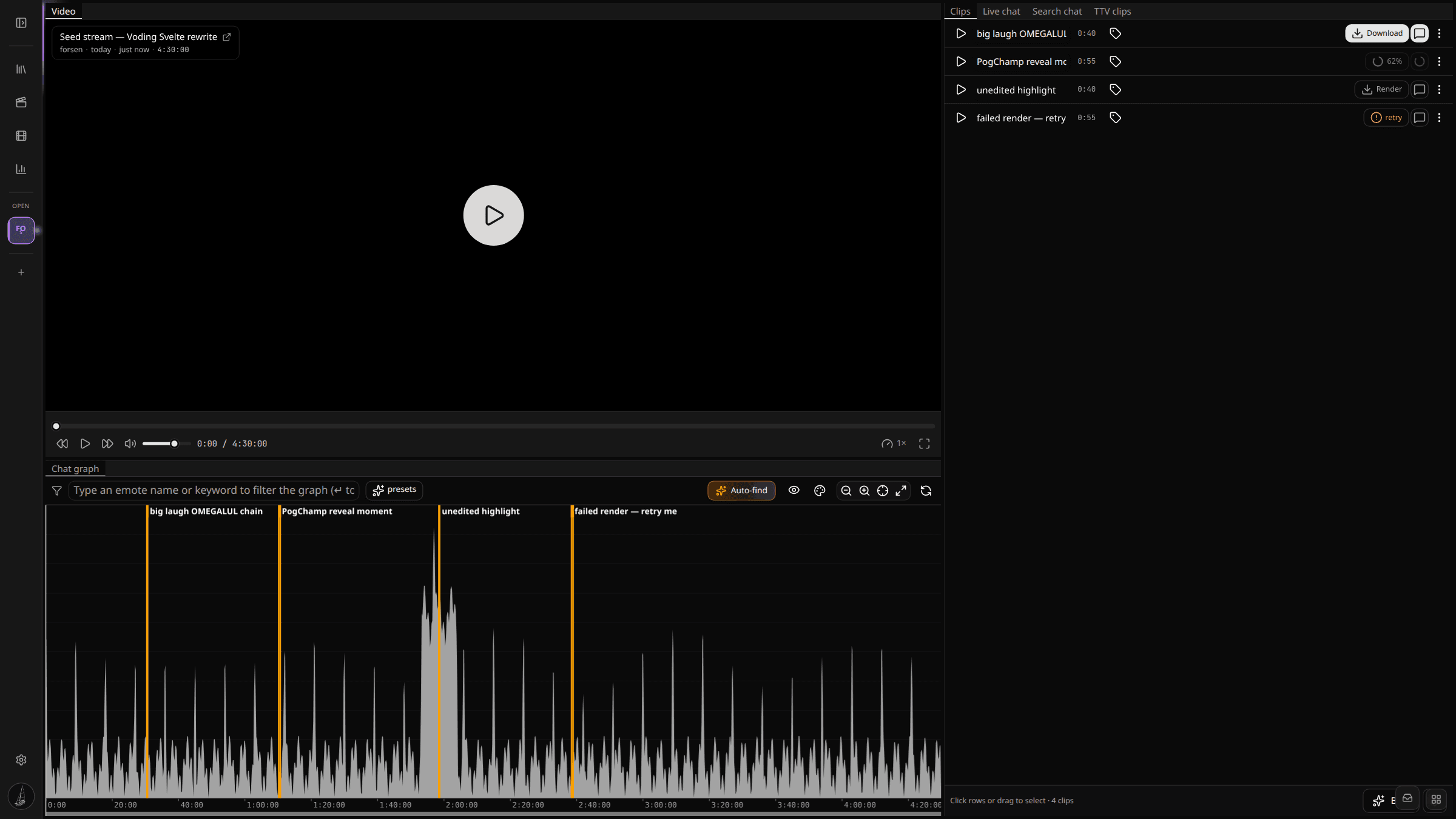
The default layout
When you open a fresh editor, the panels are arranged the way most editors want them:
- Video top-left.
- Clips, Live chat, Search chat, and TTV clips stacked as tabs in a group on the right.
- Chat graph along the bottom, full width.
Right-click any tab — or the small LayoutGrid button in the bottom-right of the workspace — for the layout menu.
Moving panels around
Drag a tab to move it:
- Drop it on another tab's strip to dock it as a new tab in that group.
- Drop it on the edge of an existing panel (top, bottom, left, right) to split that area and place the panel there.
- Drop it on empty space inside the workspace to make it a floating window over the dock.
While dragging, the workspace shows blue drop zones. Whichever zone is highlighted is where the panel will land when you release.
A panel alone in its group renders without a tab header (for the video and graph, where the title would just be noise). The header reappears the moment another panel is dragged into the same group.
Closing and re-adding panels
Closing a panel is in the tab right-click menu (there is no always-on X — too easy to hit by accident).
To bring a panel back, open the layout menu (right-click any tab or use the LayoutGrid button) and pick Add: Video, Add: Clips, etc. Re-added panels come back as a floating window so you can drag them to wherever you want them — same flow as Photoshop's Window > Show X.
If the workspace is empty, a watermark in the middle gives you an Open layout menu button.
Pop out to a second monitor
Any panel can leave the browser tab and become its own window — useful if you have a second monitor.
Right-click a tab and pick Pop out to new window. The panel detaches into a real browser window that you can drag to another display. Drag it back into the original tab's drop zones to re-dock.
The popout inherits the editor's theme (dark or light) before it paints, so there is no flash of unstyled content.
A common dual-monitor setup:
- Main monitor: video + chat graph stretched wide.
- Second monitor: chat log popped out, full height.
You watch the VoD on the main screen and scroll chat in real time on the second one, no window-juggling.
Reset to default
If the layout gets into a state you don't like, Reset to default layout in the layout menu rebuilds the original arrangement.
What gets remembered
The workspace stores its layout in localStorage per browser:
- Position and size of every panel.
- Which panels are docked together as tabs.
- Which panels are floating.
- Which panels are closed.
Pop-out windows aren't restored automatically — they live for that browser session. Open the popout again next time if you want it back.
The layout is per browser, not per account, so editing on a second machine starts from the default until you set it up there too.
Tips
- Pop out the Live chat panel onto a second monitor for streamers you edit during an active broadcast — you get chat-in-real-time without losing space in the editor.
- If you mostly use one or two panels, close the rest. A bigger video panel makes spotting visual moments easier.
- Drag the Chat graph to be vertically taller. It is often easier to read peaks with more vertical room, especially on filtered views with small spikes.