
Pricing
Plan ladder, storage caps, and what's included
Vod.ing has a single feature set across every plan. The only thing that changes between tiers is how much storage your account is allotted. Every plan can use the editor, multistream, chat overlays, the timeline maker, the FCPXML export, the auto highlight finder, every panel, every emote source — all of it.
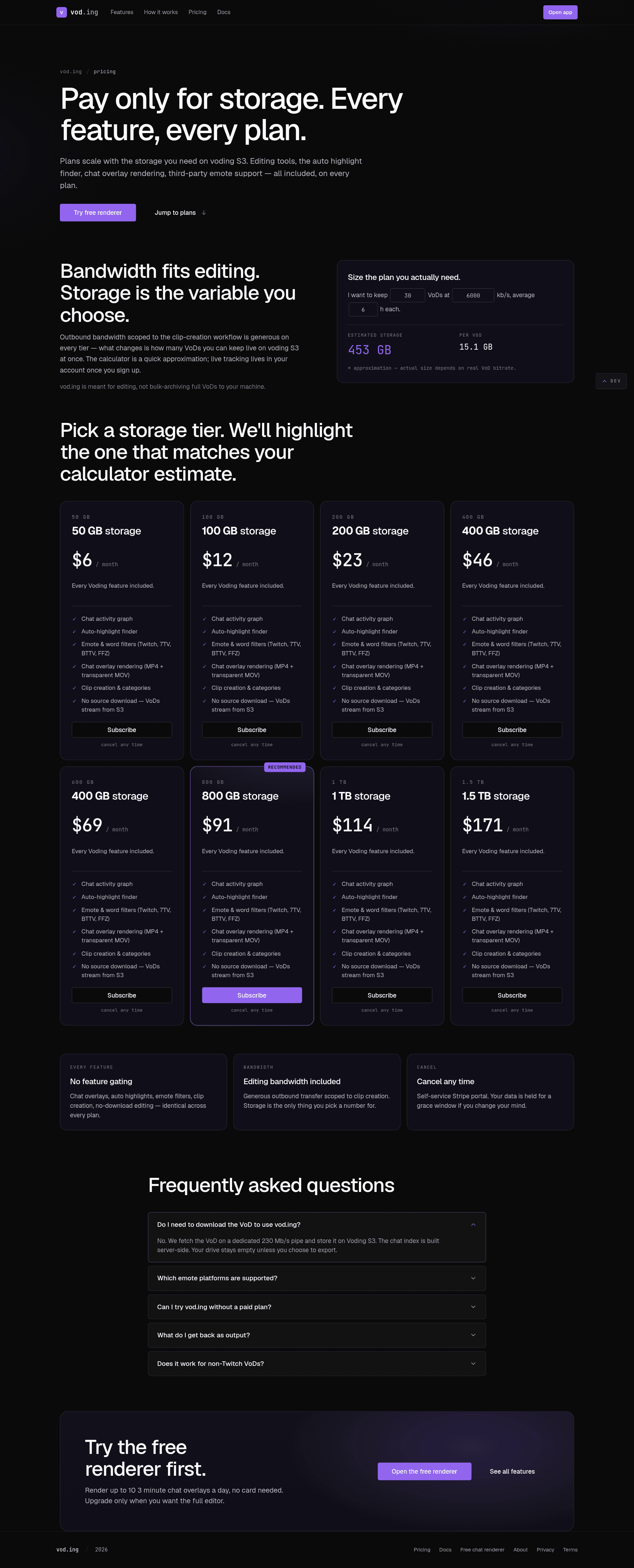
The pricing page at vod.ing/price includes a calculator that takes your typical VoD length, your typical bitrate, and the number of streams you want to keep online at once, and tells you which tier you need.
What "storage" means
Storage is two things rolled into one bucket:
- Source video. Every requested VoD's HLS segments plus the chat shards. A typical 6-hour Twitch broadcast at 6000 kbps is around 16 GB.
- Render outputs. Every rendered clip MP4 and chat-overlay MOV. A 60-second 1080p clip is around 30–80 MB depending on motion.
Both count against the same cap. When you hit the cap, the editor refuses to enqueue new renders until you delete some source VoDs or clip outputs.
Bandwidth
Outbound bandwidth — every clip you or your collaborators download — is currently metered on the same cap. This is a known limitation; a separate bandwidth meter is on the roadmap. For now, plan to delete clips after you have downloaded them if you are bandwidth-heavy.
Cancellation
Cancellation is one click in your account menu. The plan stays active through the end of the paid period, then drops your account to read-only:
- You can still sign in.
- You can still view existing clips and re-download MP4s (subject to bandwidth).
- You cannot request new VoDs or enqueue new renders.
- After 90 days of inactivity, source VoDs become eligible for cold-storage tier-down. Rendered clips and overlays are kept indefinitely.
Re-activating restores full access immediately; nothing is lost.
Invoices and tax
Stripe handles billing. The portal accessible from the account menu has every invoice, your payment method, and your VAT/tax ID if you need to add one. Receipts go to the email on your Twitch account.