
Clips
Create, name, categorize, and export clips
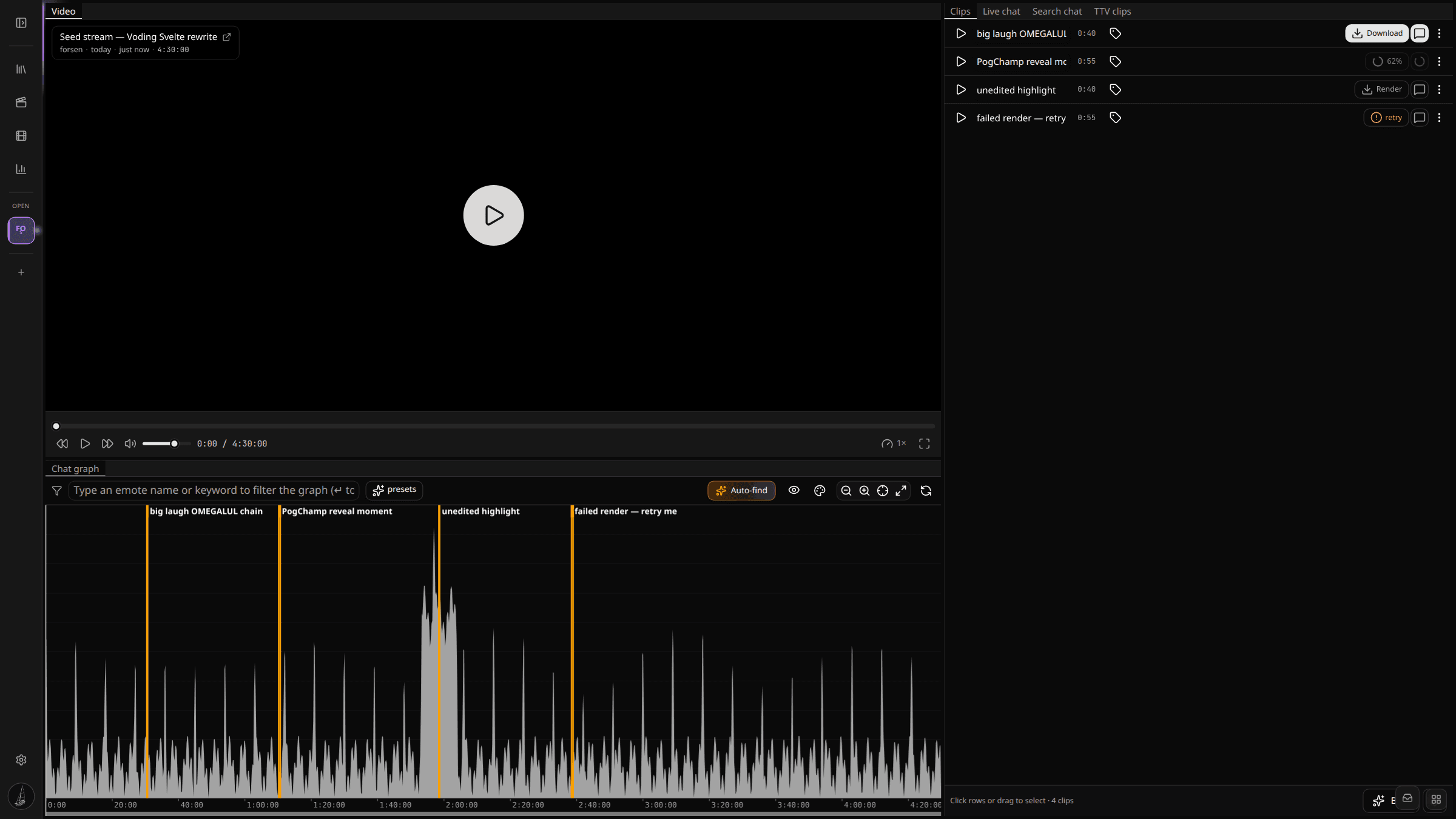
Clips are the output of the editor. A clip is a start and end timestamp on a VoD, plus an optional rendered chat overlay. You create them by dragging on the chat activity graph and then refine them in the Clips tab.
Creating a clip
To create a clip, click and drag across a range on the graph. A clip bracket appears showing the selected window. The clip then opens in the Clips tab where you can adjust:
- Start and end second-level inputs for fine trimming.
- Clip name, optionally using a naming template.
- Category, for grouping related clips together.
- Whether to render a chat overlay alongside the clip MP4.
Clips page
The Clips page shows every clip you have made across every VoD. Filter by status, search by clip or streamer name, switch between card and list view, or jump straight to Manage categories to set up the labels you tag with.
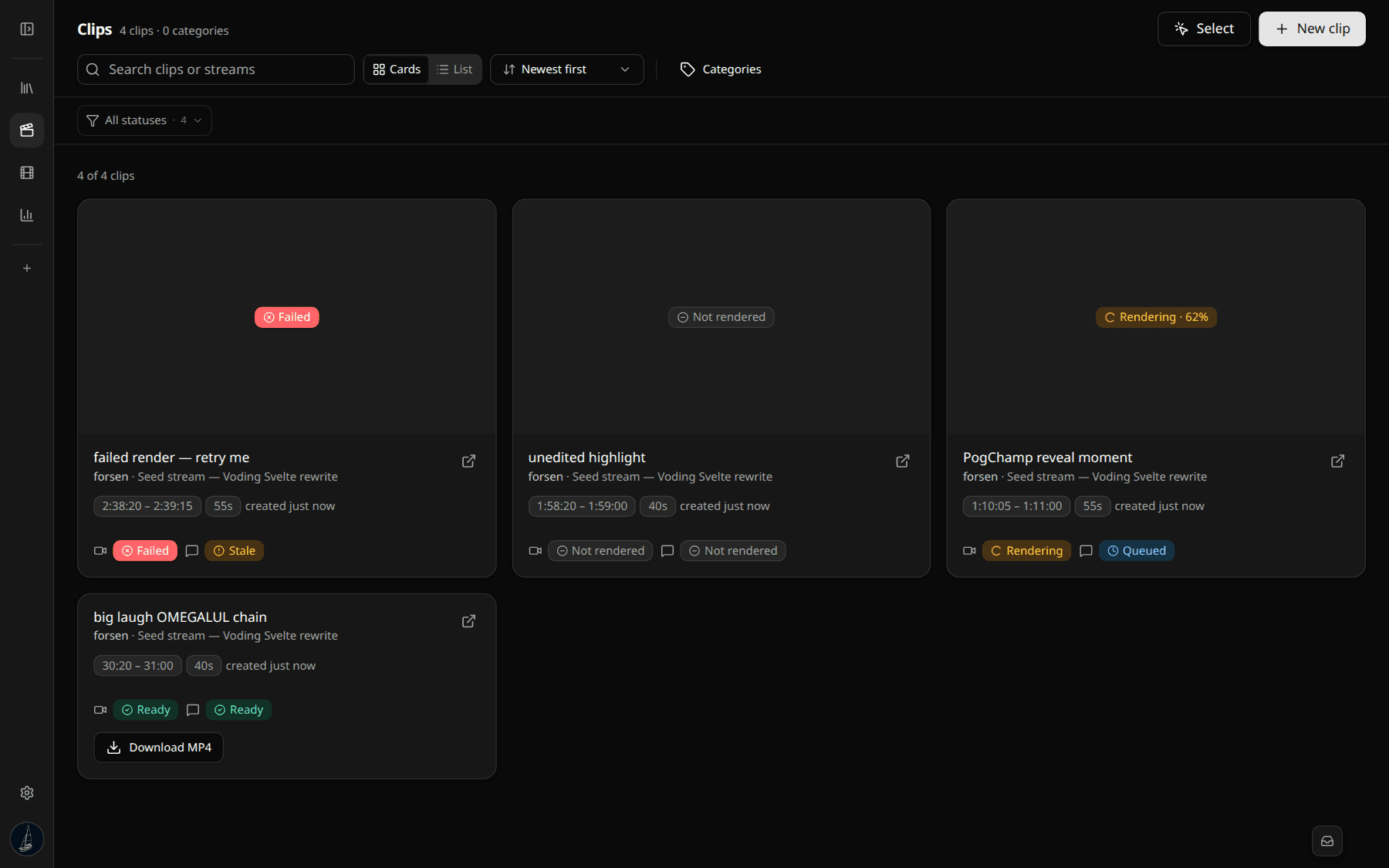
Each card shows two render statuses: the clip video render (left) and the optional chat overlay render (right). The statuses cycle through:
| Status | Meaning |
|---|---|
Not rendered | You created the bracket but never asked for a render. Click Render to enqueue. |
Queued | In the SQS render queue, waiting for a worker. |
Rendering · NN% | An ECS worker is actively ffmpeg-cutting the segments. The percentage updates every few seconds. |
Ready | The MP4 is in S3 and the Download MP4 button works. |
Failed | The render errored. Hover the status pill for the error message; click Retry to re-enqueue. |
Stale | The clip bracket was edited after a render. The MP4 is from the old bracket; click Render to refresh. |
Categories and naming templates
Categories are reusable labels you assign to clips. Common ones are funny moments, big plays, reactions, and compilation. Colour-coded so they are easy to scan.
Naming templates fill in placeholders like streamer name, VoD publish date, clip index, and start time, so you can keep a consistent file naming convention without typing it by hand. Apply a template across a category in one click before exporting.
Export
Once a clip is ready, you can download it as an MP4 directly from the card, the Clips tab in the editor, or the Clips page. The chat overlay, if you rendered one, downloads separately as either a flat MP4 or a transparent MOV depending on your settings. Drop both into your editor of choice for the final composite.
For batch downloads, switch the Clips page to Select mode with the toggle in the top-right, pick the clips you want, and either download them as a zip or pipe them into the timeline maker for DaVinci Resolve.