
Timeline maker
Assemble rendered clips into a DaVinci Resolve timeline with chat overlay positions preserved
A timeline in vod.ing is an ordered sequence of clips you have already rendered, plus the chat overlay position you want for each one. You build it in the browser, then export an .fcpxml that opens directly in DaVinci Resolve with the overlay already placed.
Selecting clips
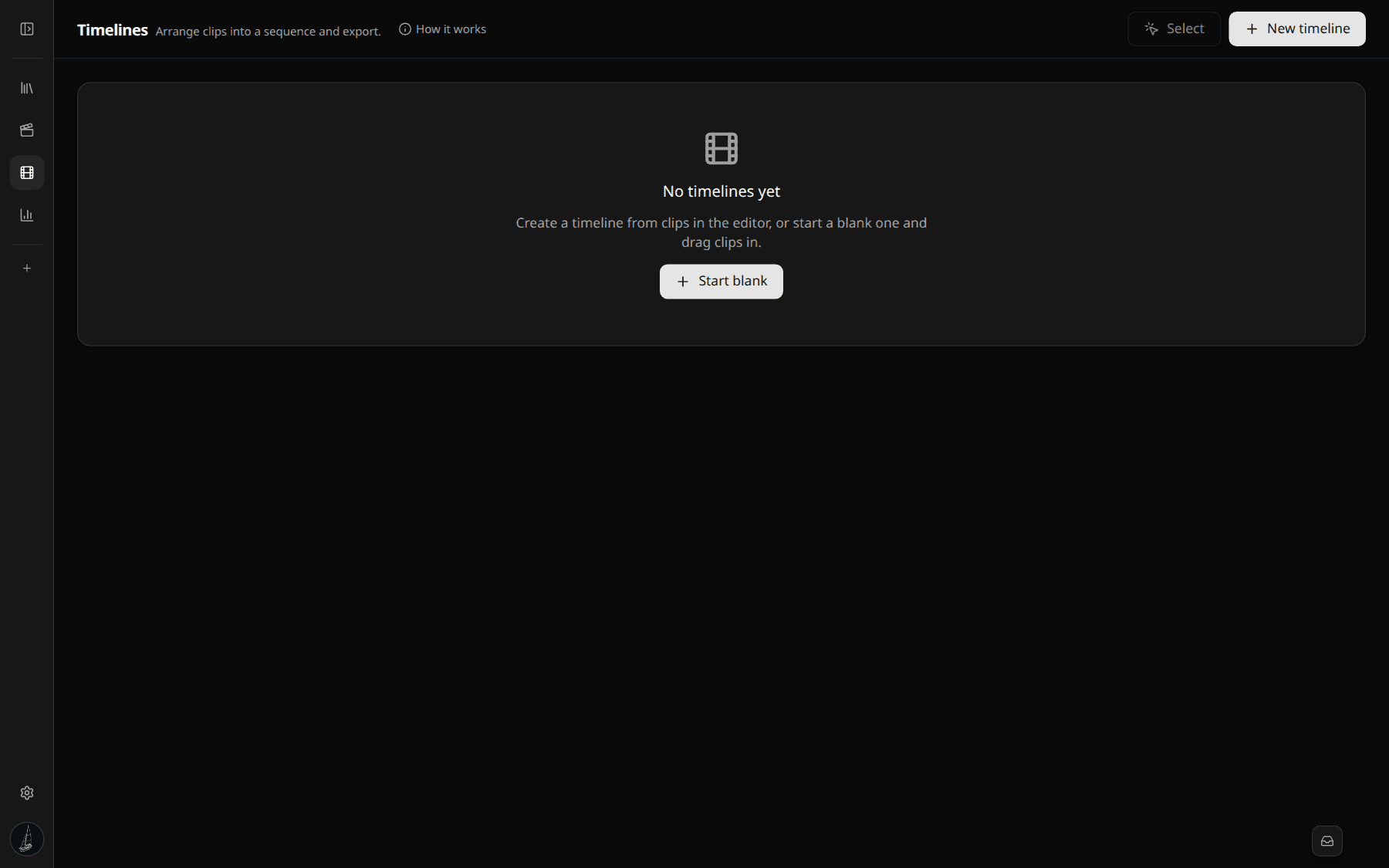
On the Clips page, toggle Make timeline to enter select mode. Checkboxes appear next to every clip. Pick the ones you want, click Create timeline, and you land on /timeline/{id}.
Only clips with a ready video render can be added. Chat overlays are optional per clip — clips without one still work, they just have no overlay track on V2.
Arranging clips
The clip strip runs horizontally across the bottom of the page. Each block is one clip. Use the < and > arrows to reorder, and the × to remove. Click a block to make it the active clip — the preview canvas and the overlay position update to match.
Reordering and removing only affects this timeline. The underlying clips are untouched.
Positioning the chat overlay
The preview canvas on the left shows the active clip's first frame with a draggable purple rectangle over it. Drag the rectangle to wherever you want the chat overlay to sit on the final video.
Position is stored per clip, in clip-pixel space at native 1920x1080. Move from one clip to the next and each one remembers its own placement. The position you set here is exactly where the overlay lands in DaVinci.
Project settings
The right-side panel holds the project-level settings:
- Name — used as the FCPXML project name and the suggested folder name.
- Resolution — 1920x1080 by default. Match the resolution of your source clips.
- FPS — 30 or 60. Match your source.
Exporting to DaVinci Resolve
Click Export to DaVinci to open /timeline/{id}/export. The page has one Download .fcpxml button at the top and, below it, a list of every media file the timeline references: each clip's MP4 and, where applicable, its chat overlay MOV. Every file has its own download button.
The workflow:
- Make a new folder on your machine.
- Download the
.fcpxmland every media file into that same folder. - Double-click the
.fcpxml. DaVinci Resolve 19+ opens it as a new timeline with V1 set to the clip videos and V2 set to the chat overlays, each positioned where you placed it in the browser.
If Resolve cannot find the media, right-click the offline clip in the Media Pool and pick Change Source Folder, then point it at the folder you downloaded everything into. Resolve relinks the rest of the bin automatically.
What gets in the FCPXML
For the curious: the export is FCPXML 1.10. Each clip becomes an asset-clip on V1. Each chat overlay becomes a connected clip on lane 1 (V2) with an <adjust-transform> carrying the position you set, converted from clip-pixel space to FCPXML's normalized coordinate system. Media references use file:./ relative paths, which is why everything has to sit in one folder.
Premiere Pro and Final Cut Pro X
The .fcpxml is written for DaVinci Resolve 19+ and tested there. Premiere Pro and Final Cut Pro X both accept FCPXML 1.10 in principle, so they may open the timeline, but transform offsets and lane layout are best-effort and untested. If you use either, expect to nudge things into place.