
About the editor
The vod.ing editor that opens when you click a VoD
The editor is where everything happens. You open it by clicking a VoD in your Library. From there you watch the stream, read the chat activity graph, filter chat, and build clips.
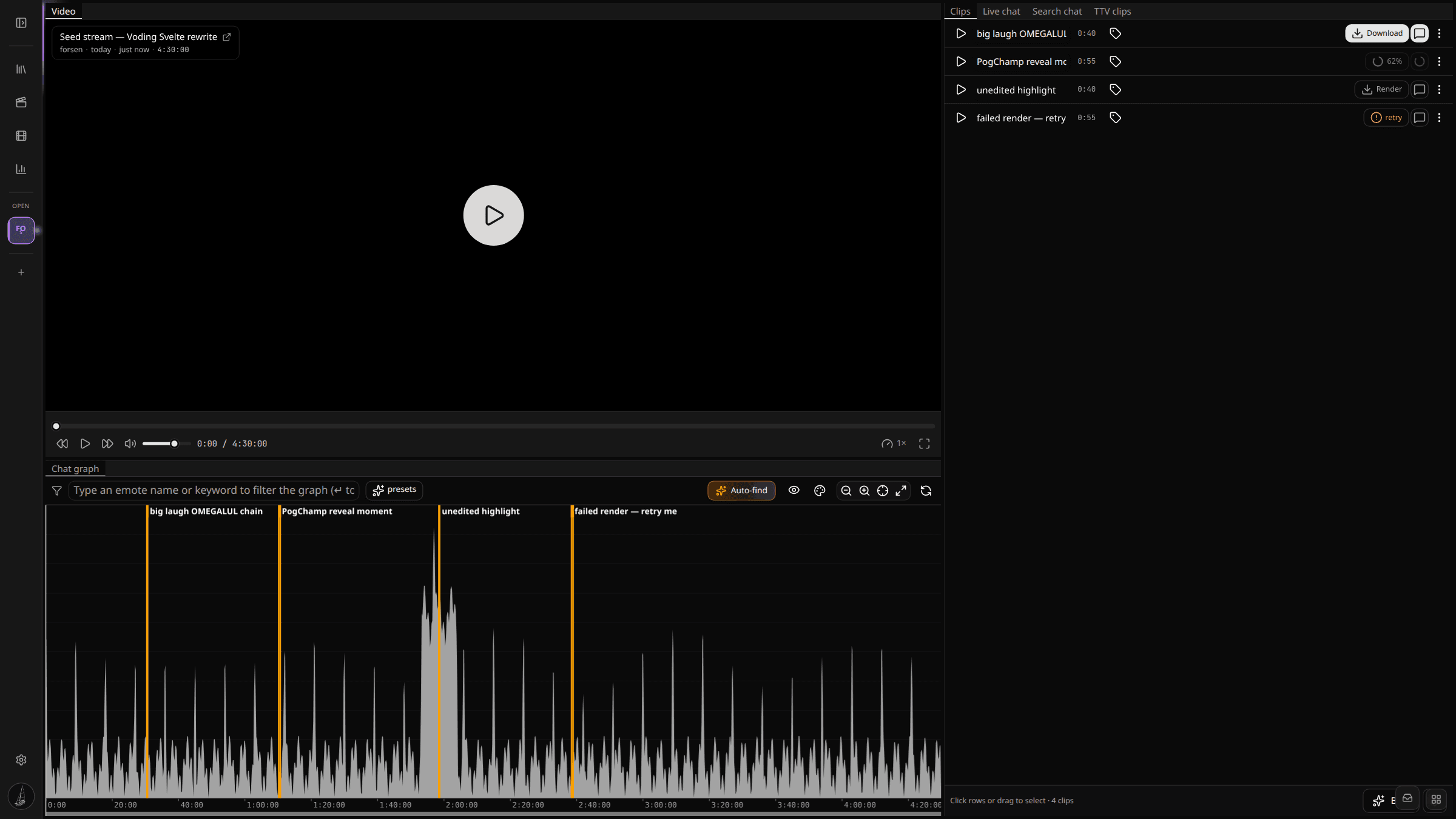
The default layout has three main areas:
- A player that streams the VoD from our S3 storage.
- A chat activity graph along the bottom that doubles as the timeline.
- A right-side tab group with Clips, Live chat, Search chat, and the existing Twitch clips for this VoD.
Every panel is independent — drag to rearrange, dock as a tab, hide, or pop out to a second monitor. See the workspace page for the details.
The tab group on the right
The right-side tab group bundles the most useful per-VoD views:
- Clips. The list of clips you have already created for this VoD. Each row shows render status for the clip MP4 (download / rendering / retry) and the optional chat overlay.
- Live chat. A Twitch-style replay of chat for the open VoD, with third-party emotes, badges, and click-to-seek timestamps. See Twitch chat replay.
- Search chat. Free-text search across every message in the VoD, with results that seek the player on click.
- TTV clips. The existing Twitch clips that point at this VoD, plotted as markers on the graph. See Twitch clips.
When you drag-click on the graph to create a clip, the clip opens directly in the Clips tab so you can tweak its start, end, name, and category in place.
Above the graph
A small toolbar sits above the graph with a handful of controls:
- A filter chip rail where you type emote names or keywords.
- Auto-find — scans the current graph for statistically significant spikes and plots markers on the ones worth a click.
- Visibility / colour / zoom controls. The eye icon switches which datasets paint.
- Zoom-out, zoom-in, fit-to-window, and fullscreen.
Tips for a smooth session
- Open Live chat next to the graph and scroll along while you watch. Most clippable moments stand out in both at the same time.
- Build a small set of go-to emote filter combos for the streamer you edit most. KEKW plus OMEGALUL for laughs, monkaS plus PauseChamp for tense moments, POG plus GIGACHAD for hype.
- Categorize clips as you go. Sorting fifty clips at the end of a session is far more painful than tagging them while they are fresh.
- Pop the Chat graph panel out to a second monitor with right-click → Pop out to new window. The graph stays in sync with the playhead in the main window — that turns a small laptop screen into a usable editor.